Enabling Zephyr Rovo Agent
SmartBear's Zephyr Rovo Agent is available to customers with access to both Rovo and Zephyr.
Prerequisites
Verify that Zephyr Rovo Agent is enabled for your Jira instance.
Confirm that Zephyr is installed and enabled in your Jira instance.
Make sure you have access to Zephyr in the Jira project where you want to use Zephyr Rovo Agent. If you cannot view Zephyr pages in that project, ask a Jira space admin to update your permissions.
To enable the agent, follow these steps:
Open Rovo
Open and click the Rovo agent from the list.
In the Searchbox, enter Zephyr
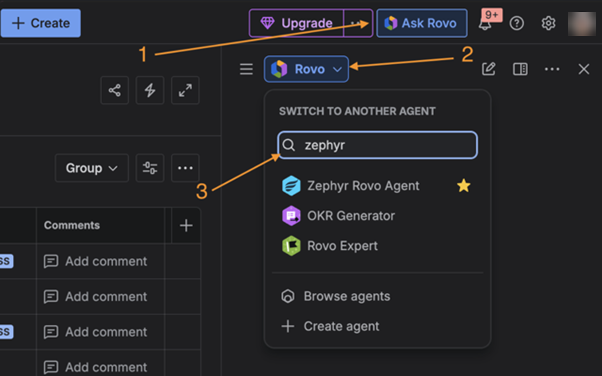
Once the agent is selected, you can use it immediately with the supported capabilities.
Note
Click the star icon to bookmark Zephyr. This action allows you to access it quickly without searching each time.
Usage and Expectations
The Zephyr Rovo Agent is designed to answer specific test management–related questions using its supported capabilities.
When using the agent:
Use clear prompts that align with the supported capabilities.
Enter all the required inputs, such as a project key, when requested by a skill.
Expect responses to focus on summaries and insights rather than raw data or configuration changes.
The agent does not perform actions such as creating, editing, or deleting Zephyr entities. Free form analysis is supported to the extent that Zephyr Rovo Agent can fetch data from Zephyr, and Rovo can then use that data for your custom analysis. Results can be unpredictable because the analysis relies entirely on Rovo.
Note
Zephyr Rovo Agent does not support additional queries, custom reports, or actions outside the defined capabilities.
The agent relies on existing Zephyr data and Jira permission settings.
If you do not have access to a project or its test data, the agent does not return results for that selected project.
Responses are provided in a human-readable format to support decision-making.
The agent is not intended to replace detailed reports or manual investigation.