Running a Test Cycle
The Test Player is where actual testing occurs and is tracked in Zephyr. Regardless of how many test cases you want to execute, the Test Player is where the fun happens.
Update and Track Your Progress
In the Test Player, you can update the status and start the test-execution timer.
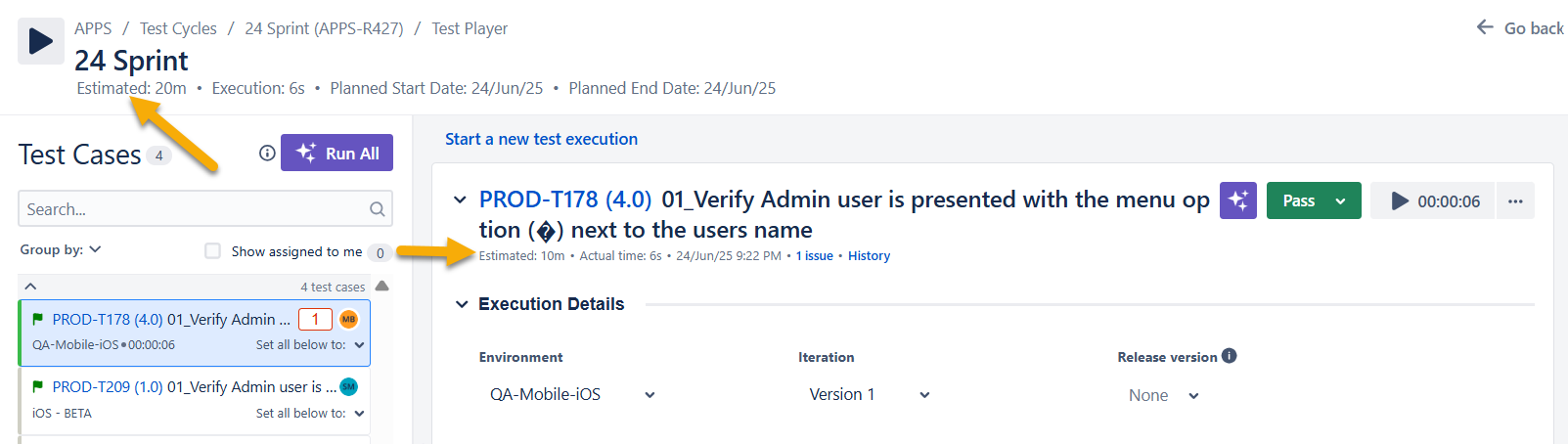
To improve the accuracy of your planning, the Test Player tracks testing estimates and actual testing time.
Time summaries appear at both the test cycle and test case levels.
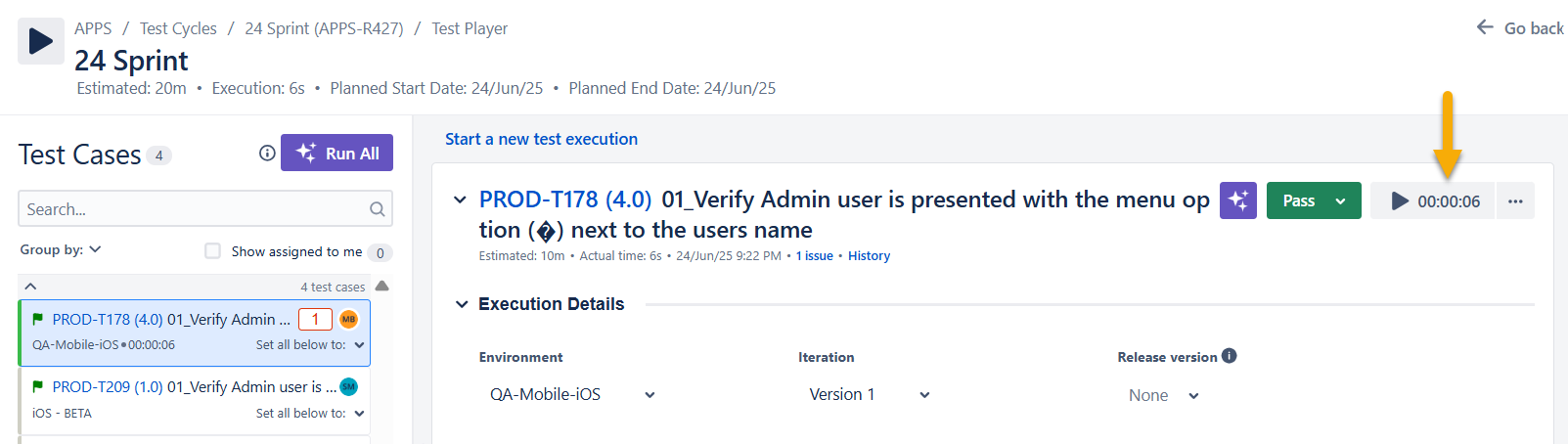
Click play to begin testing. The test-execution timer begins to run.
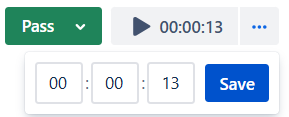
You can also enter testing time manually by clicking the ellipses button, entering the hours and minutes (hh:mm), and clicking Save.
The status of the test case updates as you input test-script results.
Bulk Updating Test Execution Status
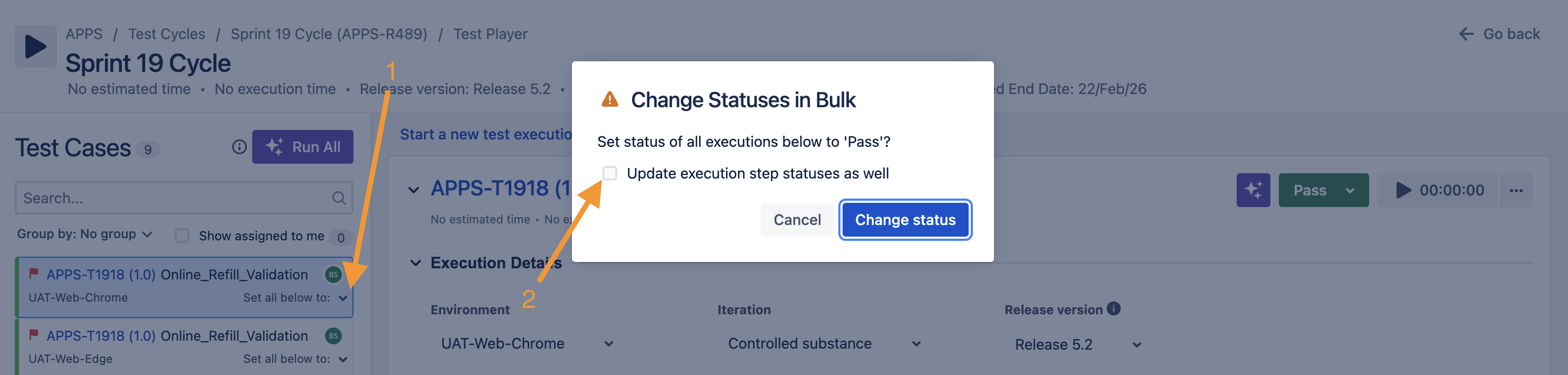
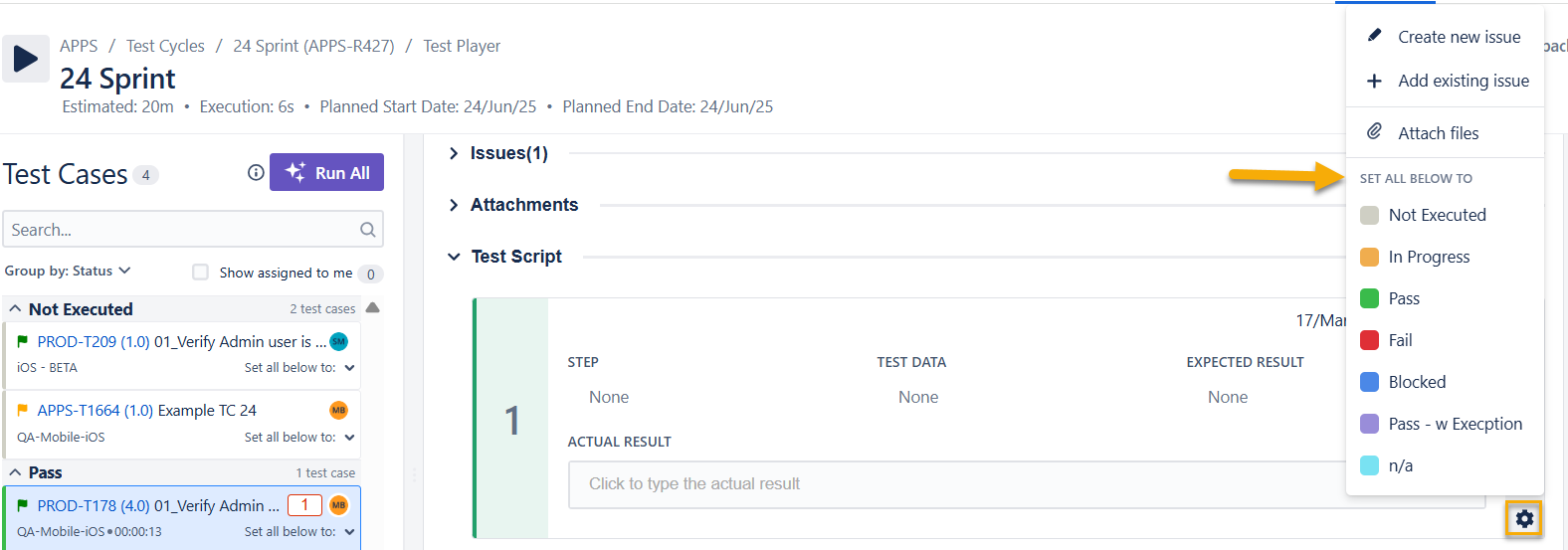
The Set all below to feature allows you to update test execution statuses in bulk, making it easier to manage multiple executions efficiently. When the Group By option is applied, this feature updates execution statuses only in the selected group, ensuring that changes are limited to the relevant set of executions.
In addition to updating the overall test execution status, you can bulk update the statuses of individual test execution steps. This enhancement provides greater flexibility when managing execution results.
To apply the status update to test execution steps, simply select the checkbox provided in the interface. When enabled, the selected status will be applied not only to the overall test execution but also to all associated test execution steps in the selected scope. This capability streamlines the execution management process by allowing users to update multiple execution results and their corresponding steps simultaneously.
Add Attachments in the Test Player
You can attach files to test executions directly in the Test Player using the Attachments panel. Attachments are stored at the test execution level and are available for review.
To add an attachment in the Test Player, do the following:
Go to the Test Player and select the test execution you want to attach a file to.
On the test execution, select and expand the Attachments section.
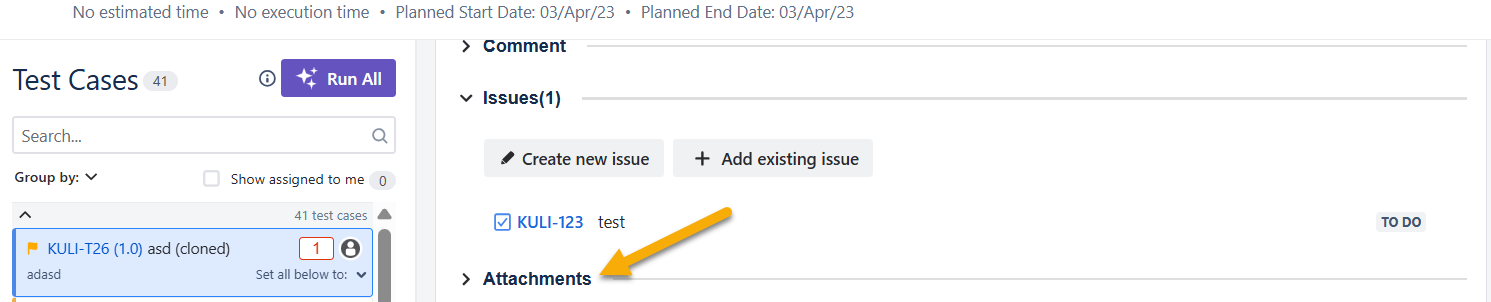
Drag and drop a file into the attachments area, or select Browse to attach a file from your file system.

Result: The attachment appears in the Attachments section when the upload completes.
Group Tests
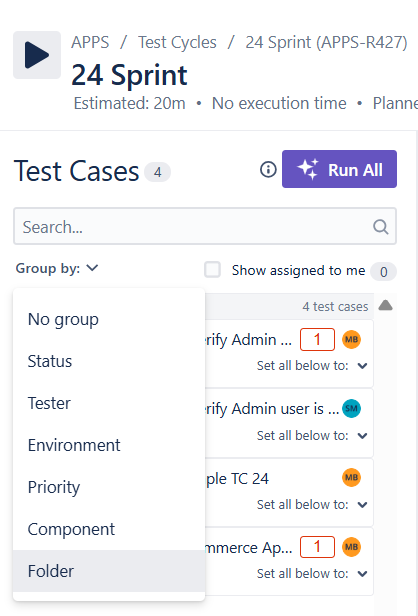
The group-by option in the Test Player allows you to filter and reorganize tests into more useful views.
Click the Group By dropdown to select a grouping option.
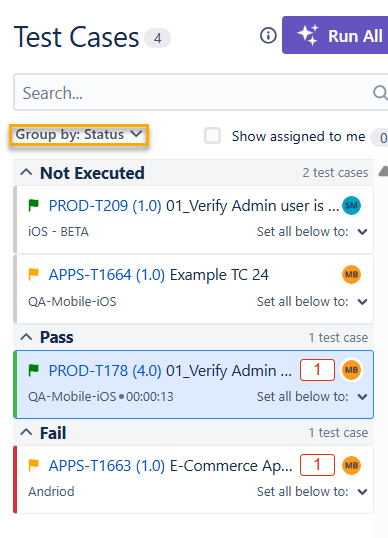
The test cases are restructured to give you a better sense of the data you're looking for. For example, this set of test cases is grouped by status:
Executing Test Cases/Steps
Complete testing for each test case, and set the result for each test step by clicking the Pass, Fail, or Blocked icons.
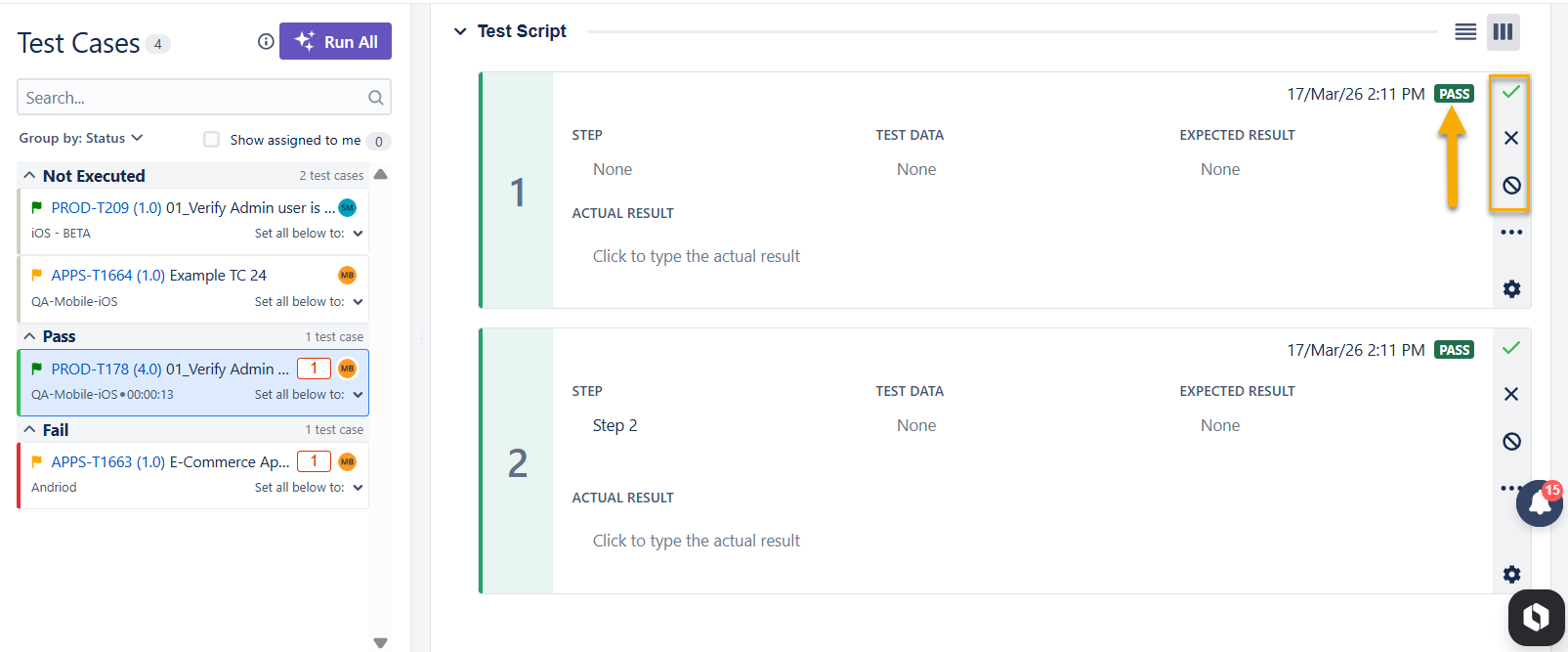
If necessary, you can update the results of any remaining steps in bulk. Simply click the cog icon, then select your desired result from the Set All Below To section.
Note
When Group By is applied, the “Set all below to” option updates the execution statuses only in the selected group.
Deleting Previous Test Executions
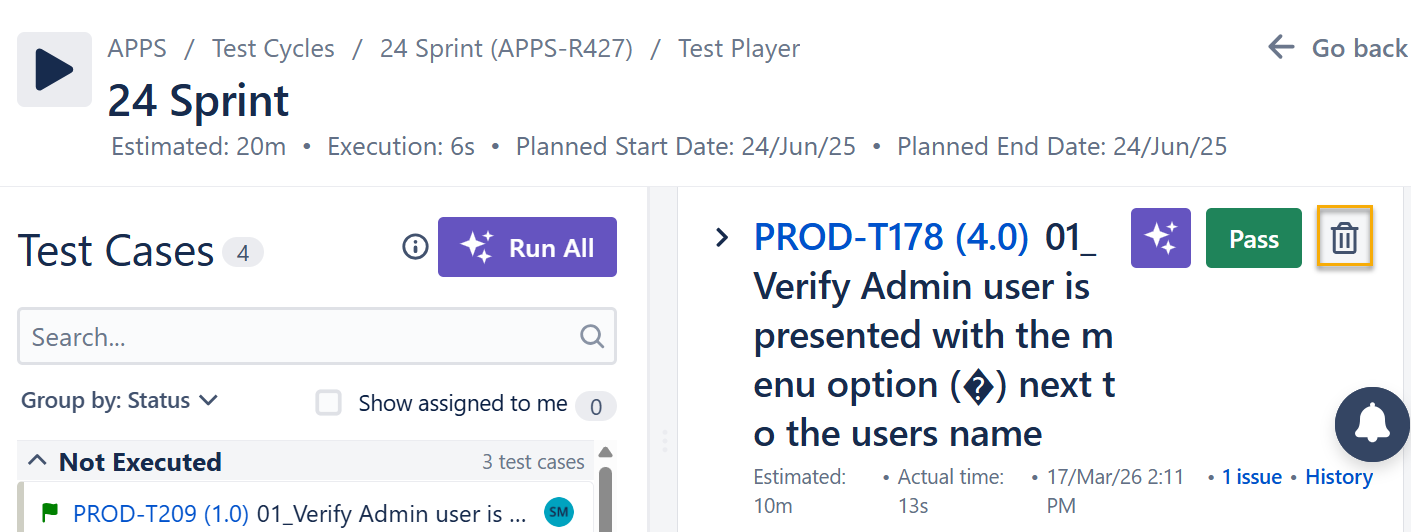
You can delete a previous test execution only after you start a new execution. To do this, simply click the "trash can" icon next to the previous execution.
Note that deletion cannot be undone.