Using Power BI
This section explains how to use Zephyr together with the Tempo Power BI Connector to expose test management data in Microsoft Power BI and build custom reports and dashboards. By combining Zephyr test data with Tempo’s Power BI connector, you can analyze quality, testing progress, and execution results alongside other Jira data such as issues, worklogs, and teams.
What You Can Build With Zephyr Data in Power BI
Using Power BI, you can create advanced and fully customized reports that go beyond standard Zephyr reports. Common examples include:
Test coverage reports mapped to jira work items or requirements
Defect leakage analysis, comparing failed tests with linked bugs
Cross-space quality dashboards, combining Zephyr and Jira data
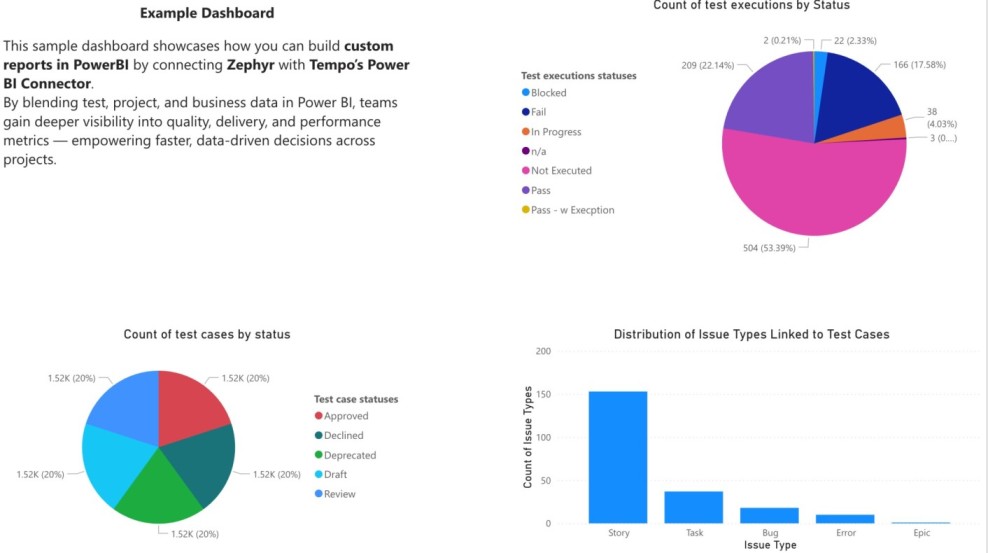
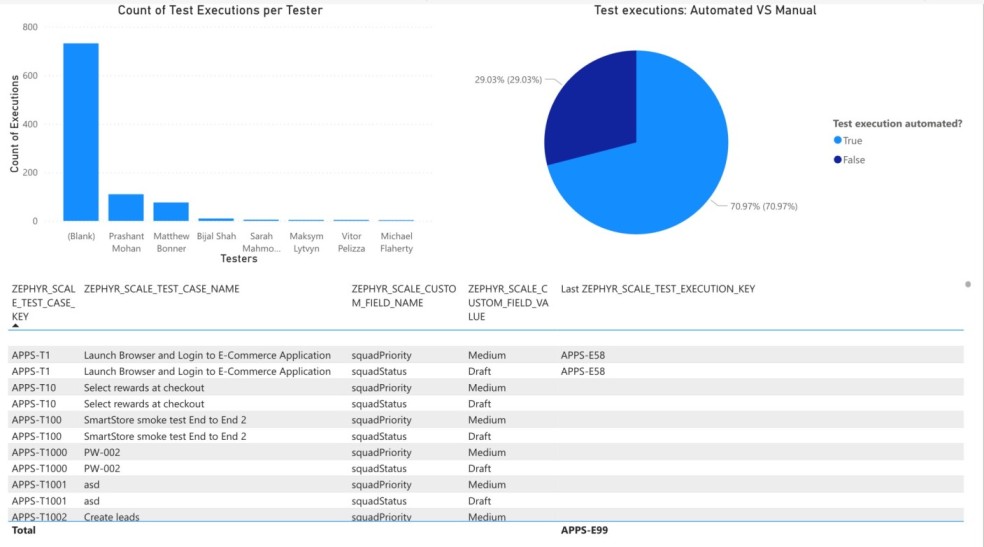
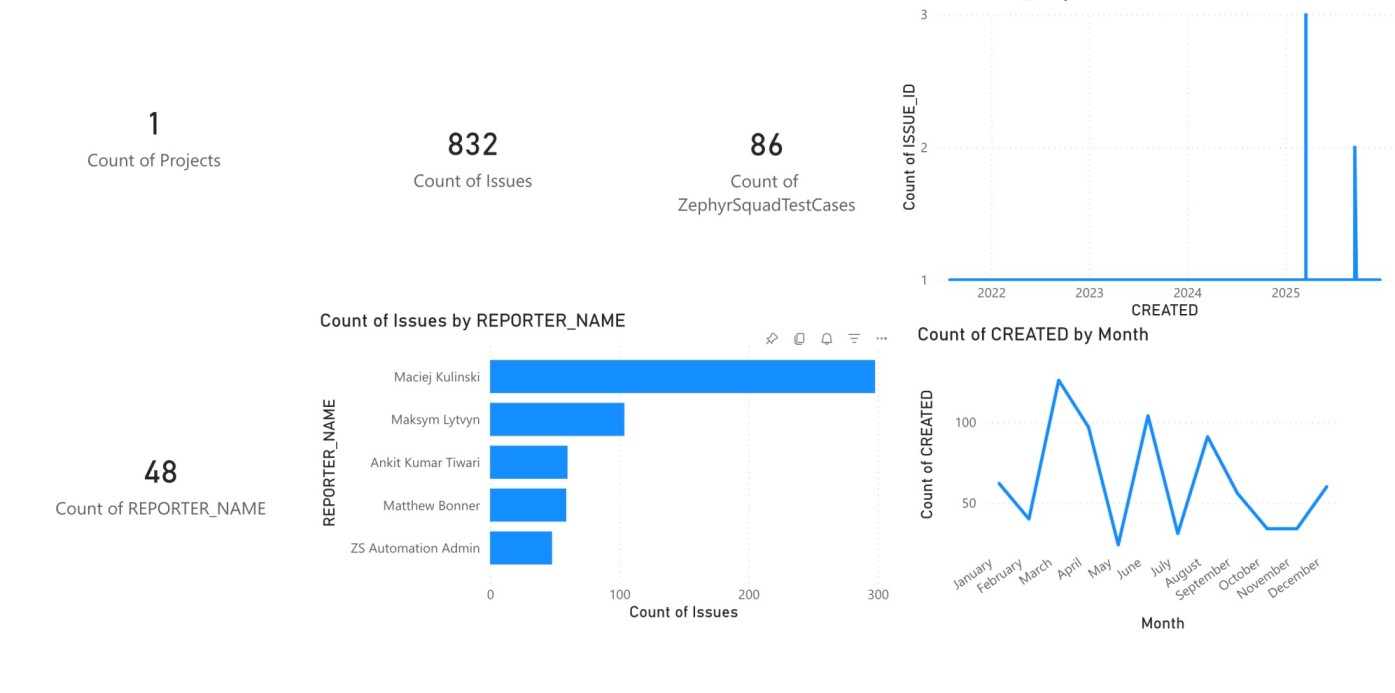
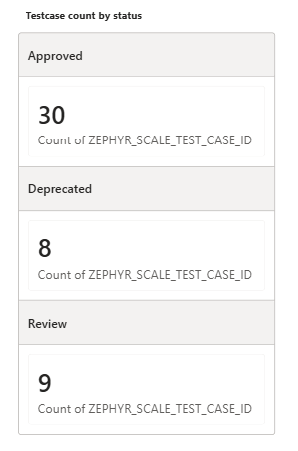
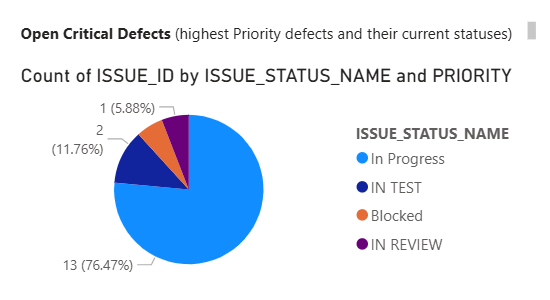
These reports can be shared across teams, embedded in other tools, or used for executive-level visibility. See the example Dashboard and reports below.
How the Integration Works
The integration uses the Tempo Power BI Connector, which connects directly to Jira and exposes data from installed Jira apps, including Zephyr.
High-level flow:
Install the Tempo Power BI Connector for Jira
Connect Power BI to your Jira instance using the connector
Select Zephyr-related datasets provided by the connector
Build custom Power BI reports using Zephyr data
Zephyr does not require any additional configuration for this integration beyond standard permissions.
Prerequisites
Before you start, make sure you have the following:
You have Zephyr installed in Jira.
You have access to Tempo Power BI Connector for Jira.
You have an active license for Power BI.
You have Jira permissions to view Zephyr data, such as test cases, test cycles, and executions.
Set up the Integration
Step 1: Install the Tempo Power BI Connector
Install the Tempo Power BI Connector from the Atlassian Marketplace. For detailed installation steps, see Tempo documentation:
Step 2: Connect Power BI to Jira using the Tempo connector
Once the connector is installed, you can connect Power BI to your Jira instance. Follow Tempo’s step-by-step guide:
This process includes:
Step 3: Configure data schemas in Power BI
After connecting, Tempo provides predefined schemas that expose Jira and app data, including Zephyr.
You can do the following:
Use the default schemas provided by Tempo
Customize schemas to include only required fields
Combine Zephyr datasets with jira work item data
For details, see:
Step 4: Load Zephyr data into Power BI
When selecting datasets, look for Zephyr-related tables such as:
Test cases
Test cycles
Test executions
Execution results and statuses
The exact table names might vary. Tempo explains how to select and load app data here:
Build Reports with Zephyr Data
Once the data is loaded, you can start building reports in Power BI.
Typical steps
Define relationships between Zephyr tables and work item tables
Create measures for pass rate, execution count, or coverage
Build visuals using Power BI charts and filters
Share dashboards with your team
For Power BI specific guidance, refer to Microsoft documentation:
Notes and Limitations
Data availability depends on Jira permissions
Large Jira instances may require filtering to improve performance