How to Run an Automated Test Execution
From a Test Case View
Running a test case from the test script page does not count as an ad-hoc test execution. Note that no test execution will be created after in Zephyr. Run your automation tests from this view to ensure your test case can be used with the automation feature. You must run real test executions in the Test Player view.
Accessing Automation Options in Zephyr: Go to a Zephyr test case with a Test Script type of Step by Step.
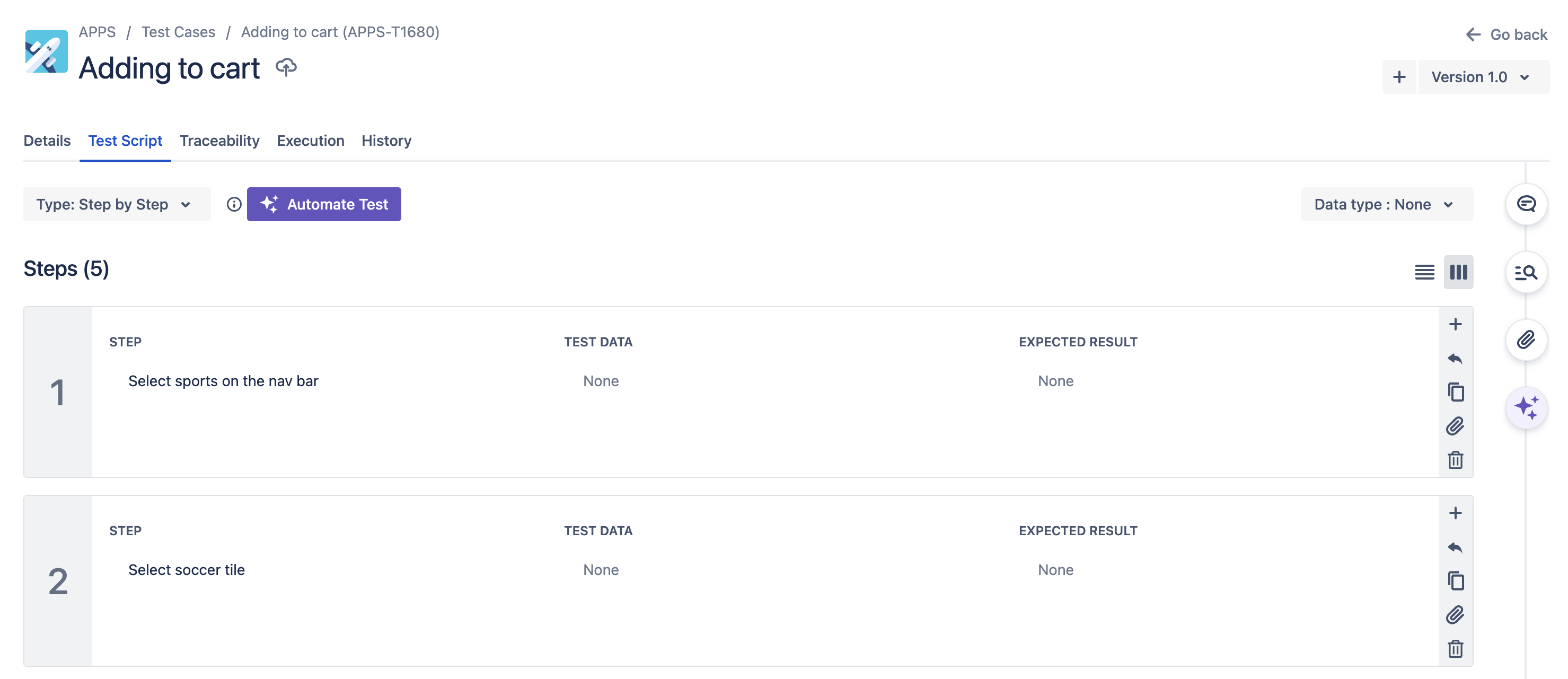
Running Automated Tests: In the Test Script tab, click Automate Test. This opens a new panel with configuration for automating the test case.
Configuring Test options:
Starting URL: Enter the URL of the public website under test. The automated test will start by navigating to this URL. The URL is a required field. If your testing environment has no public URL, see how to configure access for private/local environments.
Device Profile: Choose whether the test runs on a desktop browser or emulates a tablet or mobile browser.
Important
First automation test run can only be done in Google Chrome.
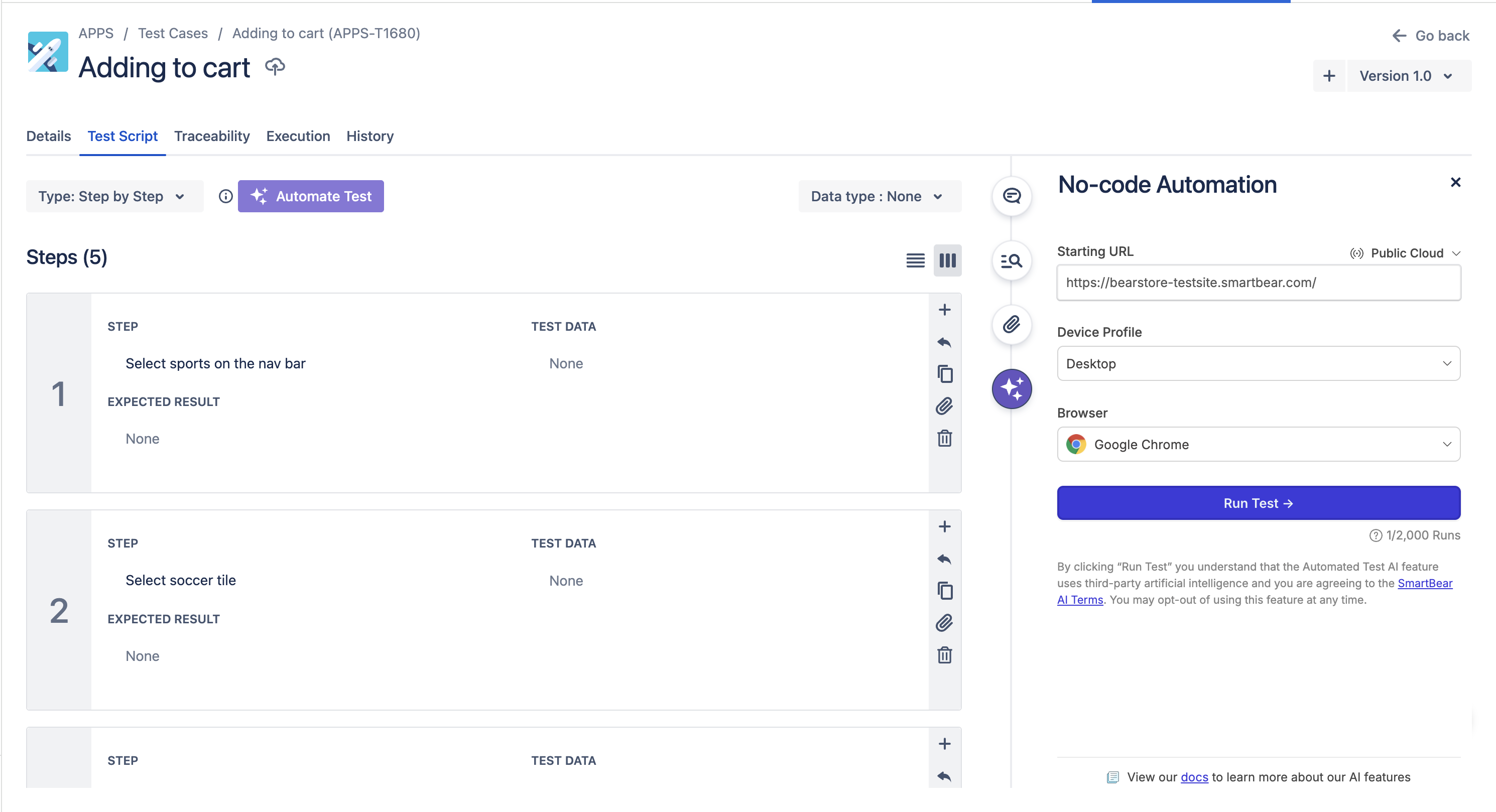
Starting the Test: Click the Run Test button.
You can use the Reflect AI agent to execute the test and make any changes if you want. click Proceed. The test will start executing, stating all the steps being taken.
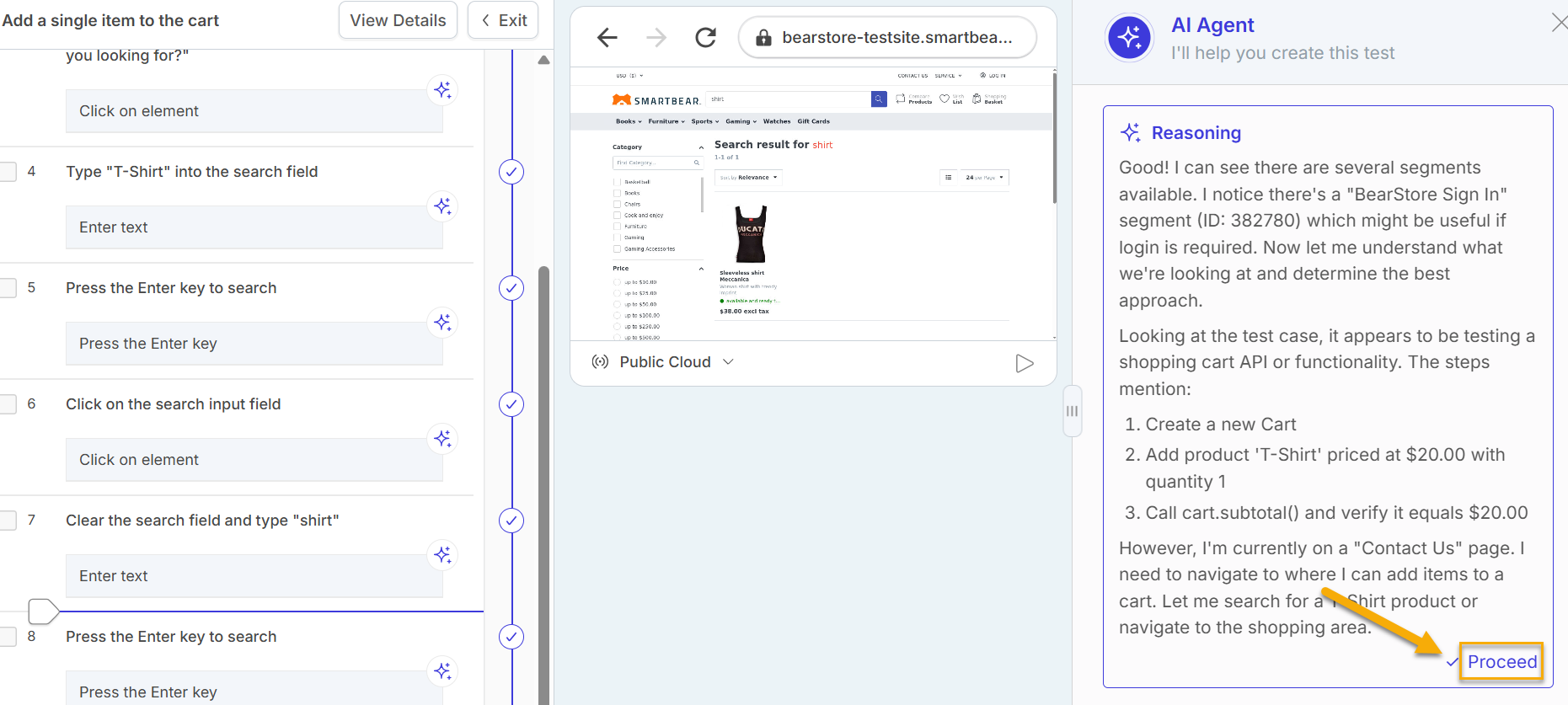
Now, you can see the test once the execution is done.
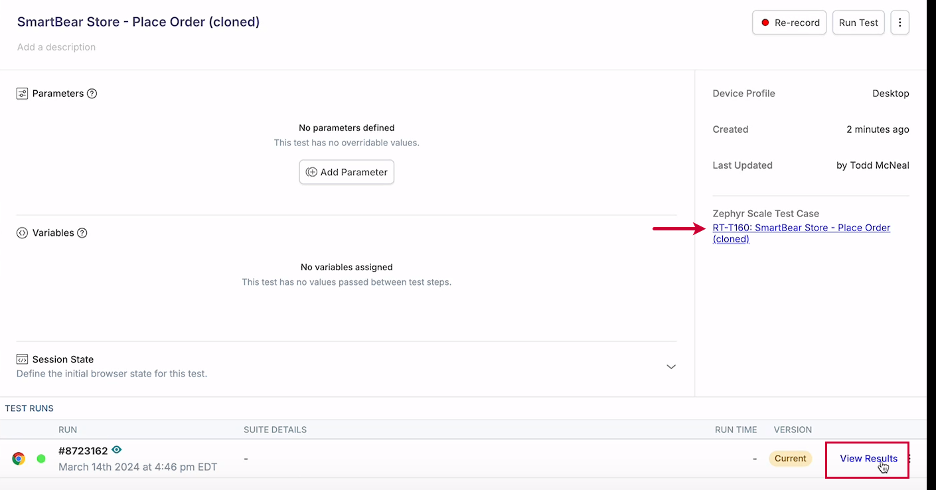
Click on View Results. This allows you to watch the recorded execution of a test case. When you click on "View Test", you will be redirected to the view shown in the screenshot above. You'll have a hyperlink to go to the test case in Zephyr.
Note
Next time you’ll run the same test, you won’t be redirected to the new window. The test will run while you’re on Zephyr page.
From a Test Player
You can run all of your tests in a test cycle at once, or you can run each test individually. If you choose to run all of your tests, they will run as automated tests in the same order as they are listed in the Test Player.
Go to a Zephyr Test Cycle library. Select the desired cycle from the list.
Click Run All.
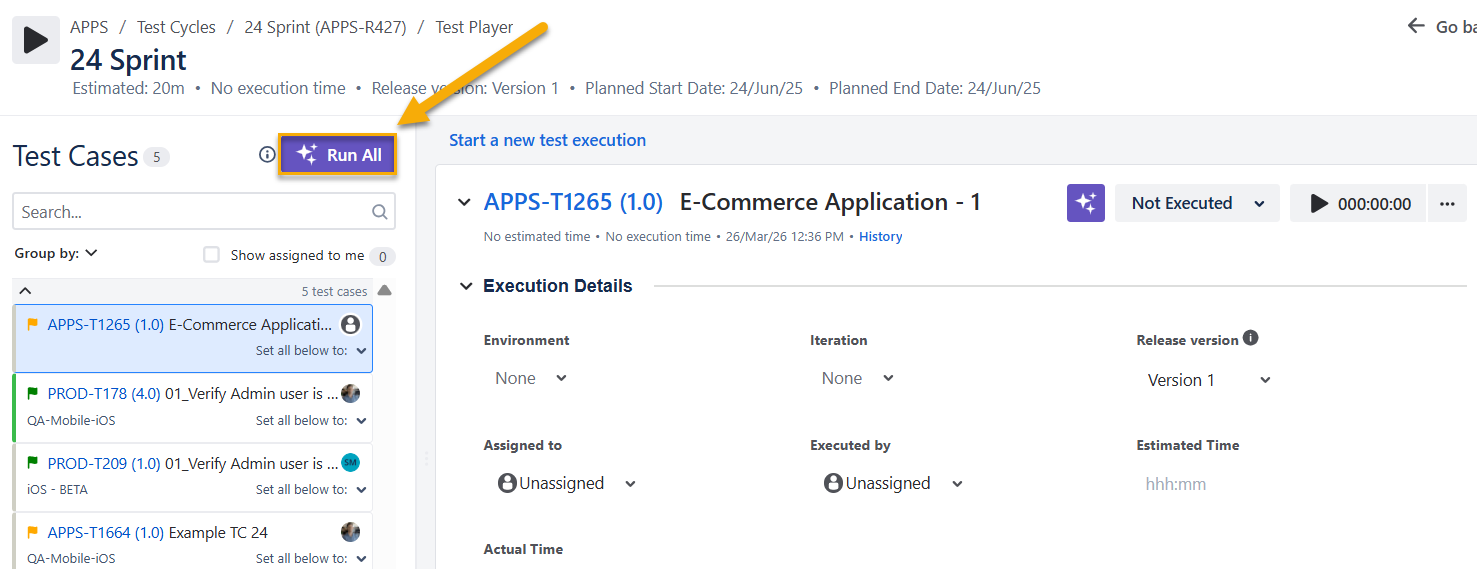
The list of the test cases included in this cycle appears on the right. The test cases that were already run have the enabled status.
The disabled test cases have to be run individually before they can be part of the automated test cycle.
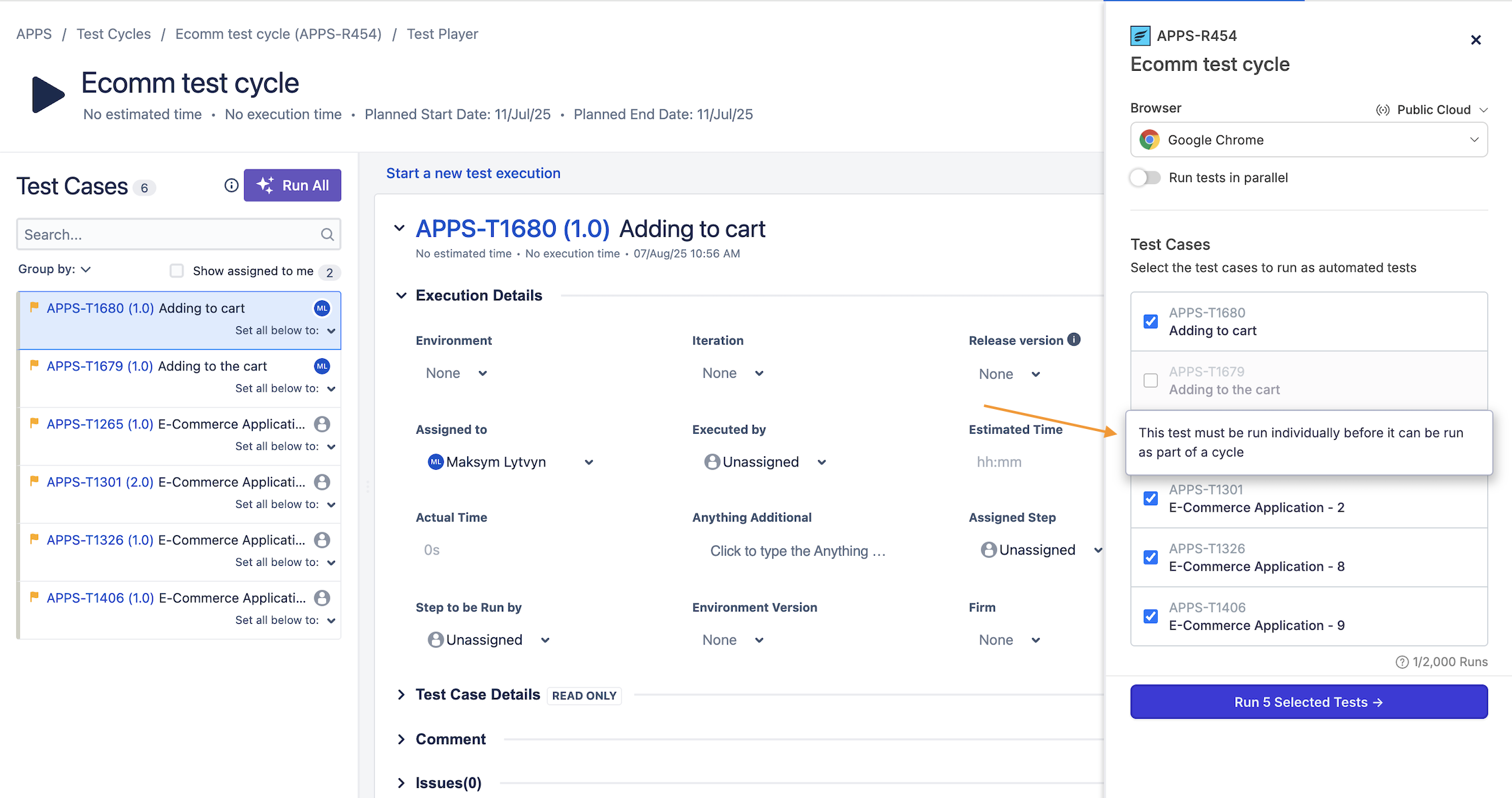
Choose the test case on the left pane to run it individually:
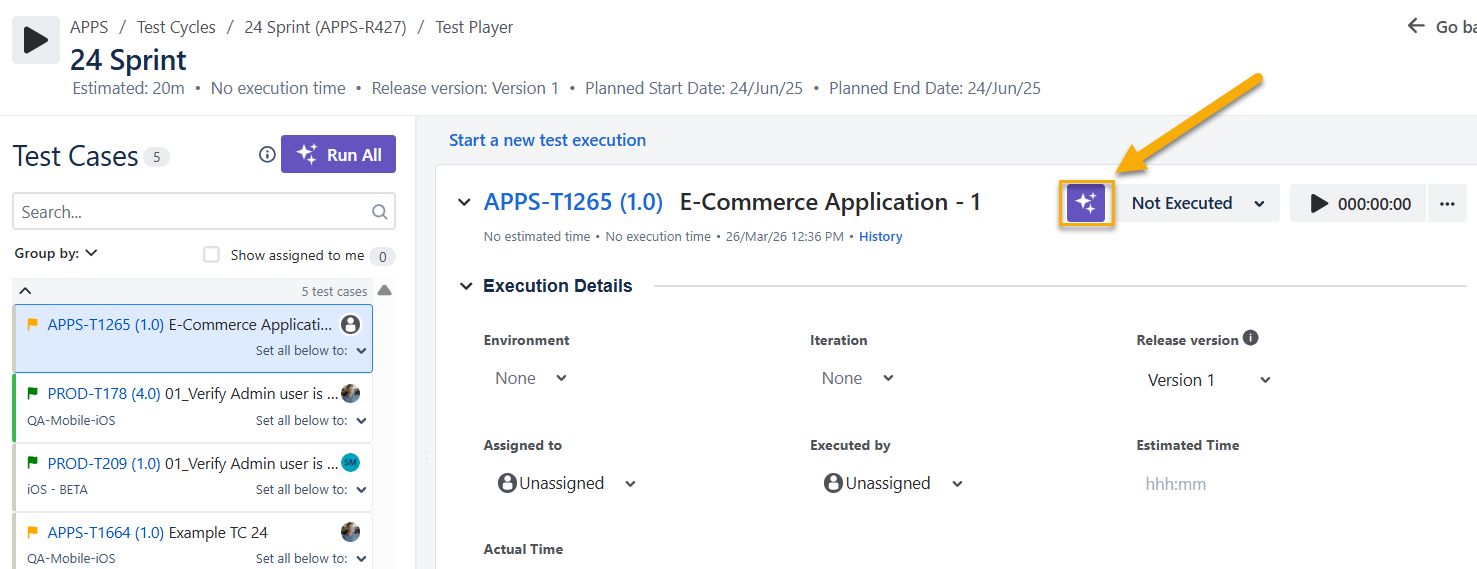
Click on the run automated test button as per in the image above.
Scroll down to run a test cycle with the selected test cases. You can select/remove enabled test cases from your run.
Click Run.
While the test is running, you can click Watch that will take you to Reflect:
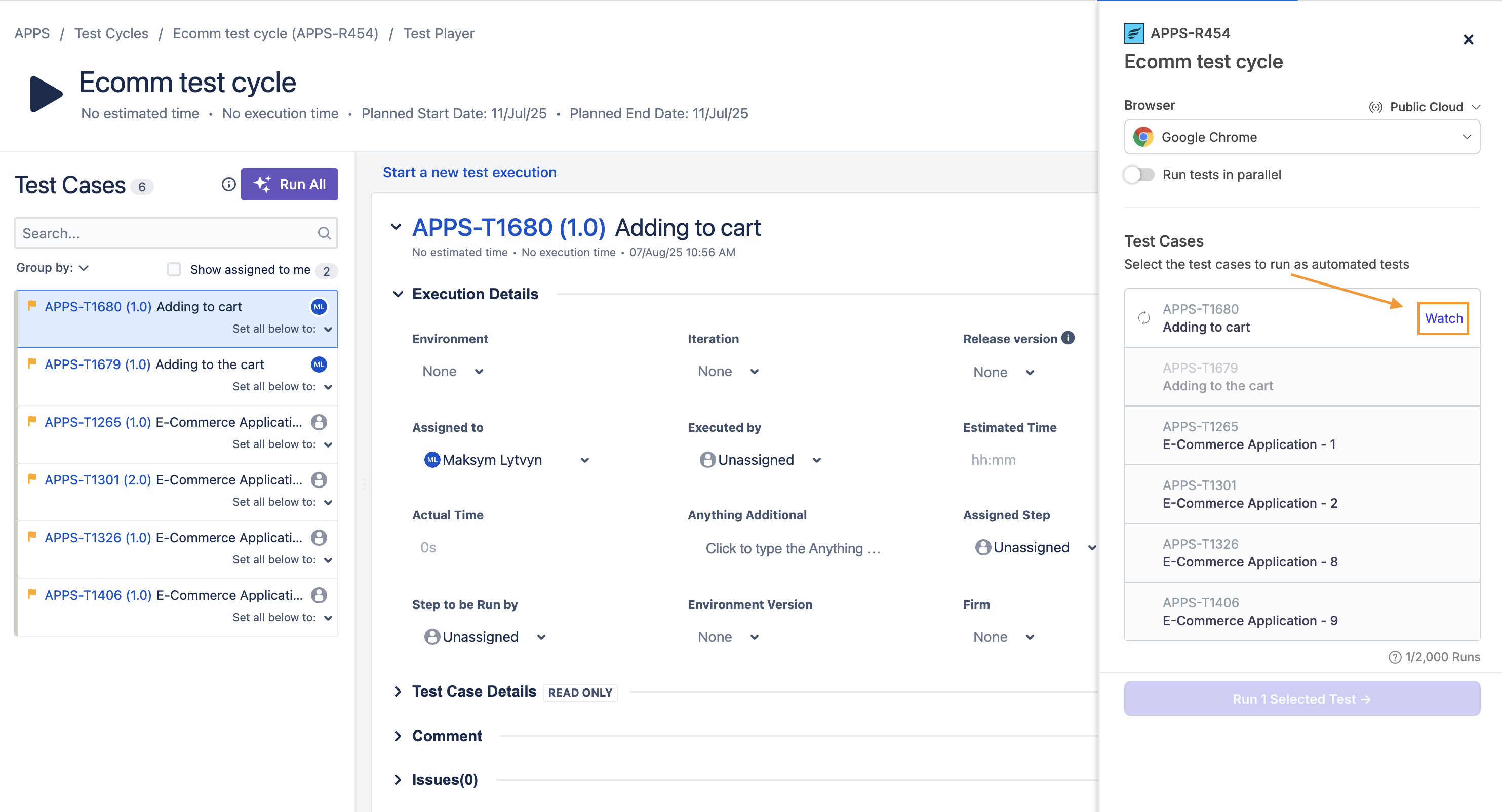
Refresh the page to see changes to the test execution statuses.
Note
If the Run tests in parallel toggle is on, test cases in the selected test cycle will be executed in parallel; if the toggle is off, tests in the test cycle will be executed sequentially.
To execute the test cycle that was already executed by Reflect, clone the Test Cycle in Zephyr. To learn more, go to Editing, Cloning and Deleting Test Cycles